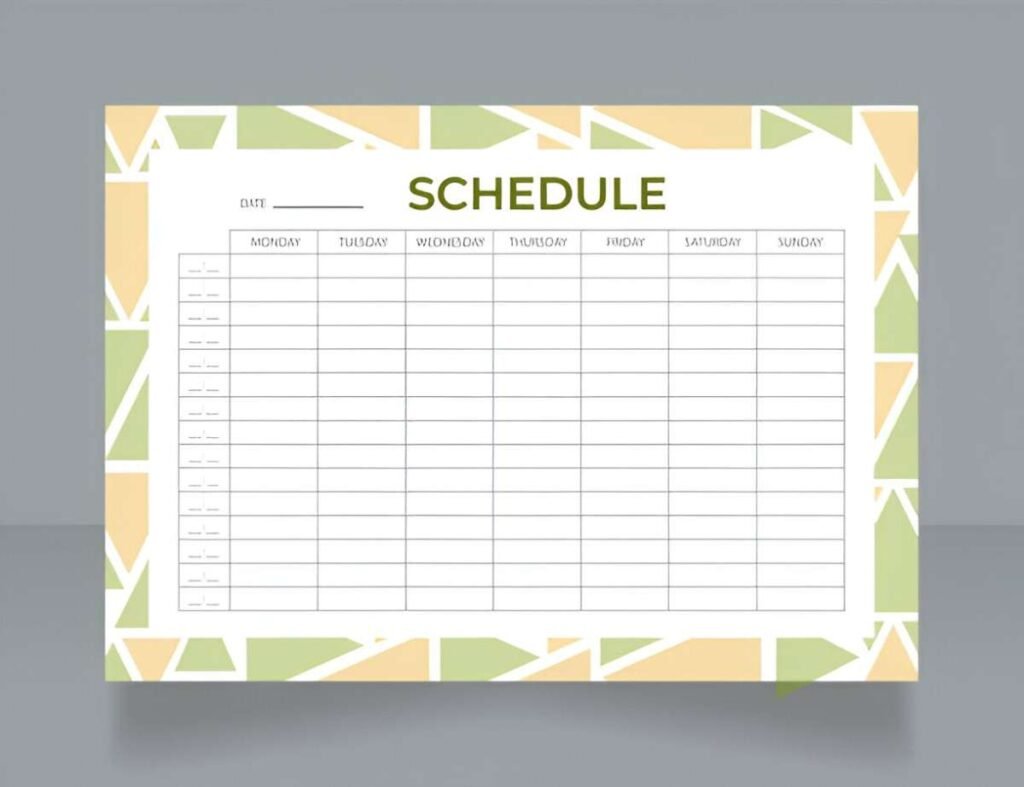
This Daily Schedule Gantt Chart Excel Template is a versatile and professional tool designed to help individuals and teams plan, track, and manage tasks and activities on a daily basis. Whether you’re overseeing a project, organizing personal schedules, or coordinating team workflows, this template provides a clear visual representation of timelines, durations, and progress.
Key Features
- Predefined Columns for Task Details : Includes fields for activity name, start date, end date, duration, and completion percentage.
- Color-Coded Progress Bars : Automatically generates progress bars based on completion percentages, making it easy to identify task status at a glance.
- Customizable Timeline : Supports up to five weeks of scheduling, with each day clearly labeled (e.g., Week 1 Day 1, Week 2 Day 3).
- Flexible Task Management : Allows users to group tasks under categories (e.g., Task 1, Task 2) for better organization.
- Dynamic Chart Updates : Adjusts progress bars dynamically as users update completion percentages or task durations.
Use Cases
- Project Management : Ideal for tracking milestones, deliverables, and deadlines in small to medium-sized projects.
- Team Coordination : Helps teams stay aligned by providing a shared visual timeline of tasks and responsibilities.
- Event Planning : Ensures all activities leading up to an event (e.g., venue booking, catering, promotions) are completed on schedule.
- Personal Scheduling : Organize daily routines, study plans, or fitness goals with ease.
- Workshops and Training Programs : Plan and track sessions, breaks, and activities for multi-day workshops or training events.
How It Works
- Input Task Details : Enter the activity name, start date, end date, duration, and completion percentage into the designated columns.
- Review Progress Bars : The template automatically generates color-coded progress bars to represent the completion status of each task.
- Customize the Timeline : Extend or modify the timeline to fit your project’s needs by adding or removing days/weeks.
- Group Tasks : Use the “Task” rows to categorize activities under specific headings (e.g., Task 1, Task 2).
- Save and Share : Once completed, save the file and share it with your team or stakeholders for review and collaboration.